Physical Address
304 North Cardinal St.
Dorchester Center, MA 02124
Physical Address
304 North Cardinal St.
Dorchester Center, MA 02124
Talk is Cheap, Let’s Do the WordPress!
Talk is Cheap, Let’s Do the WordPress!
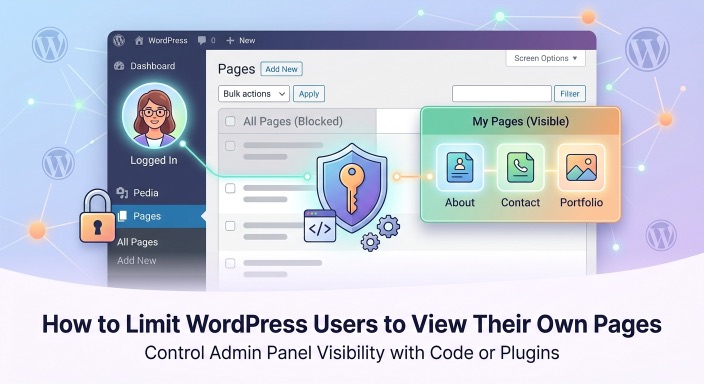
By default, WordPress allows users with page-editing privileges to see all pages created by every author in the admin dashboard. While restricting users to their own “Posts” is standard in some roles, doing the same for “Pages” requires a slight adjustment.
Whether you want a lightweight, code-based solution or a user-friendly plugin, here is a complete guide on how to configure WordPress so users can only see and manage their own pages.
If you prefer to keep your website fast and avoid installing extra plugins, you can add a short code snippet to your theme’s functions.php file. This code intercepts backend queries and ensures non-administrator users only fetch content they created.
functions.php file of your active child theme./**
* Restrict non-admin users to only view their own posts and pages in the dashboard.
*/
function restrict_admin_posts_and_pages_to_author($query) {
// Target only the admin dashboard, the main repository query, and exclude administrators
if (is_admin() && $query->is_main_query() && !current_user_can('manage_options')) {
global $user_ID;
// Apply restrictions to both 'post' and 'page' post types
if ($query->get('post_type') == 'page' || $query->get('post_type') == 'post') {
$query->set('author', $user_ID);
}
}
}
add_filter('pre_get_posts', restrict_admin_posts_and_pages_to_author);
Once saved, any user who is not an administrator (e.g., Editors, Authors, Contributors) will only see their own authored content when clicking on “Posts” or “Pages” in the sidebar. The dashboard counts and item lists will automatically filter down to show only their work.
If you prefer not to touch your theme’s code, or if you need granular control over specific user roles, you can achieve this easily using plugins.
This is a dedicated, lightweight plugin designed specifically for this exact problem.
If your users belong to high-level roles like “Editor”, they naturally have a capability called edit_others_pages. To revoke this and fine-tune their access, use a role manager plugin.
Edit (own) and Delete (own).Edit Others, Delete Others, and Read Private.When restricting page access, ensure your users still have the core permissions required to interact with the dashboard:
edit_pages capability.publish_pages is active for their role.To tailor this setup perfectly, what specific User Role (e.g., Author, Editor, or Custom Role) are your users assigned to? Let me know if you would like custom code or a precise permission matrix for that exact role.